
Creating questionnaires
Why questionnaires matter
Questionnaires give you a fast, flexible way to collect information from patients, such as outcome measures, intake forms, consent forms, satisfaction surveys, or standardized check-ins, without chasing down paper forms or re-entering data by hand. Build one from an existing Embodia template or start from scratch, then customize every question to fit exactly how you practice.
Every practice runs on information: health history, symptom tracking, consent, outcome measures, and questionnaires are how that information gets from your patient to your chart without having to retype a word.
Build a questionnaire once and reuse it as often as you like: attach it to a consult, send it manually, or set it to go out automatically before or after an appointment. Patients complete it on their own device, at their own pace, and their answers land directly in their profile, including where you've connected a patient property, updating that property automatically. Less admin for your team, cleaner data for your practice, and outcome measures you can actually track over time.
Create a questionnaire from a template
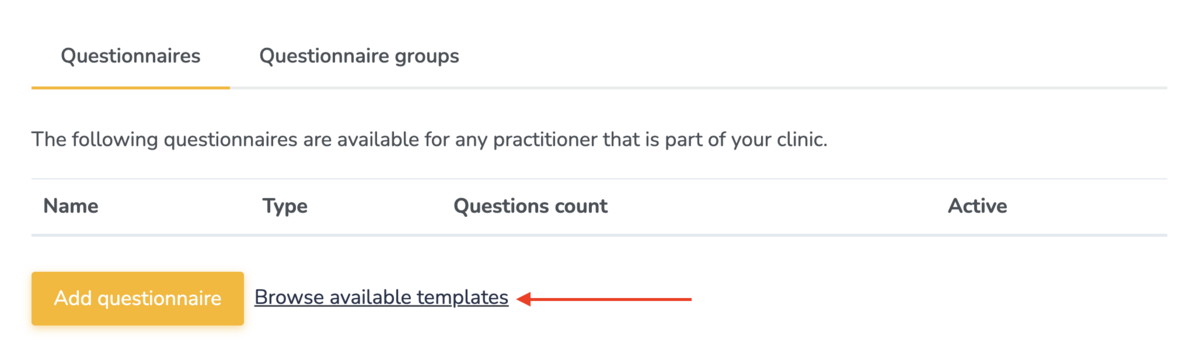
Go to HEP > Questionnaires, and then click Browse available templates:
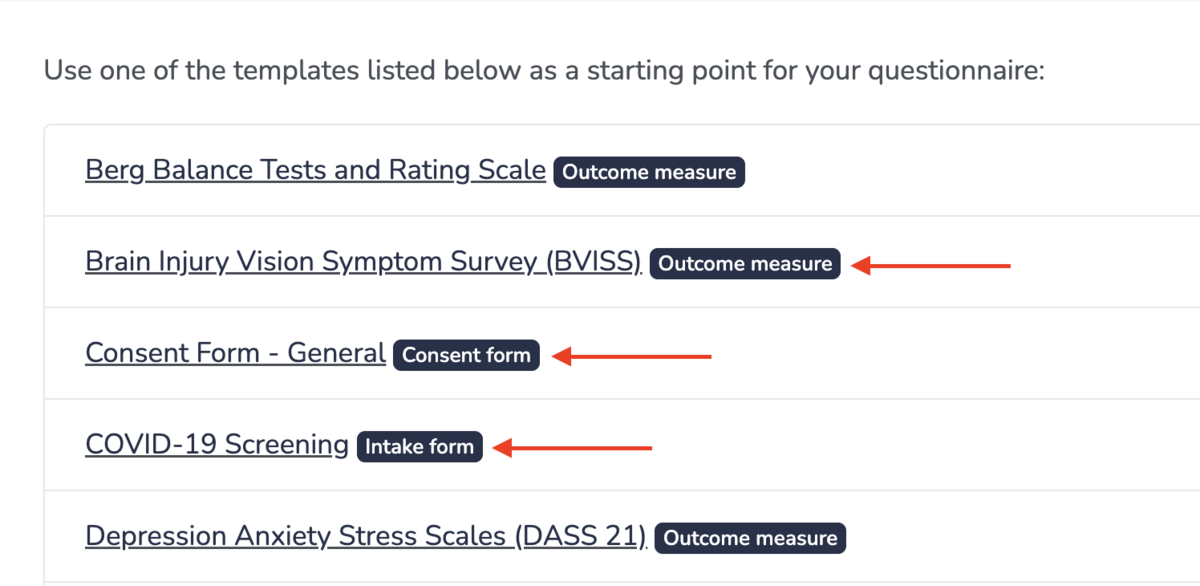
- Review the list of templates. Each one is labelled by type, so you can see at a glance whether it's an Outcome measure, Intake form, or Consent form. The full list is covered in What questionnaire and outcome measure templates are available?
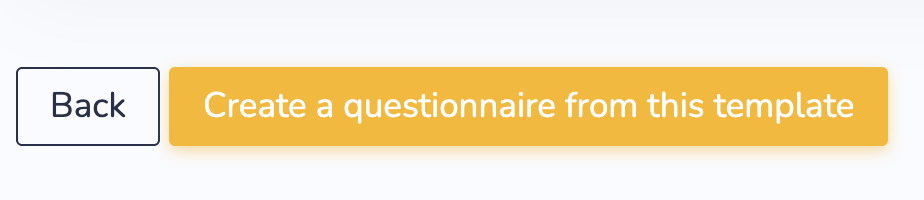
- Select a template to add it to your library, then scroll to the bottom and choose Create a questionnaire from this template.
- Customize the content once it's in your library. It's yours to edit from here.
Create a questionnaire from scratch
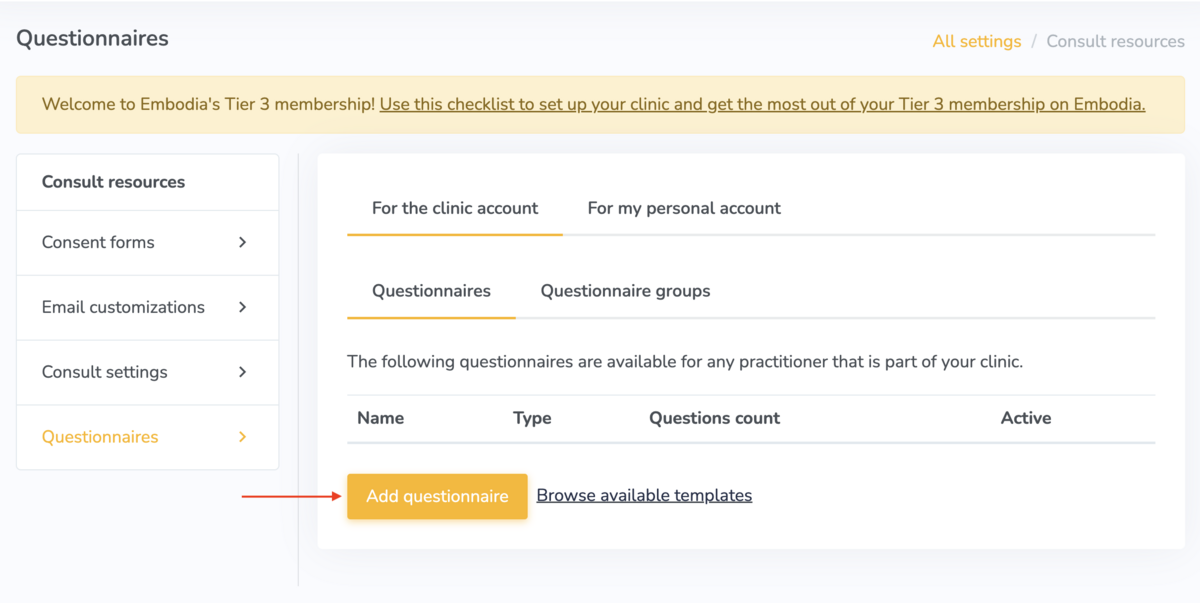
Go to HEP > Questionnaires, and then select Add questionnaire.
- Name your questionnaire: if you are using the French translation feature, you can add an English and a French name. Then, choose its Questionnaire type (Outcome measure, Intake form, or Consent form), set a Scoring strategy (if applicable), and select Active to make it available for use. Click on Learn more about scoring strategies if you want more detail on how scoring works.
If you would like to prevent patients from going back and updating their answers after the initial submission, check the "Lock after the initial submission to prevent patients from updating their answers" checkbox.
For Tier 3 members, optionally, choose a Practitioner signature behaviour if this form (e.g., a consent form) needs to be countersigned by the practitioner (more information below)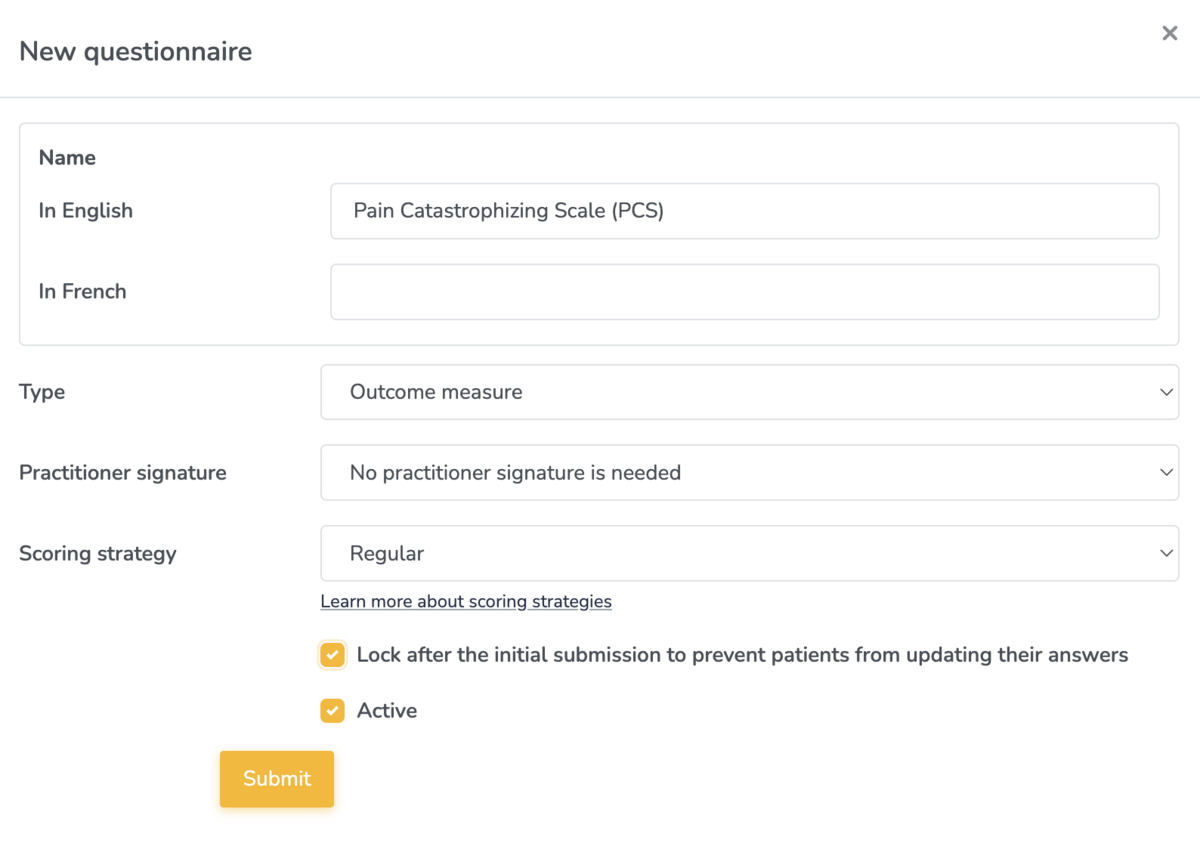
Click Submit to create your questionnaire. You will now see an empty questionnaire where you can begin adding items.
Practitioner signature behaviour
There are 3 options for the practitioner signature behaviour:
- No practitioner signature is needed
- Allow practitioners to manually sign a completed questionnaire: Adds an Add my signature button to the completed questionnaire that the practitioner can click to add their signature.
- Automatically sign a questionnaire when it is completed: The practitioner's signature is added the moment the patient submits
To be able to sign a completed questionnaire, the following criteria need to be met:
- The questionnaire needs to be added under the clinic account of a clinic with a valid Tier 3 membership
- The practitioner needs a saved signature on their account.
- Only the practitioner who shared to the questionnaire can sign it. Other clinic members can't sign on their behalf.
Adding items to the questionnaire
You've got two ways to build here: create your questionnaire manually, item by item, or use AI DocBuilder to read an existing PDF and rebuild it as a fully fillable questionnaire inside Embodia, no manual recreation needed. The rest of this section covers the manual build; for the AI DocBuilder workflow, see AI DocBuilder: Building fillable forms from existing PDFs
Select New item at the bottom of the questionnaire page to start building.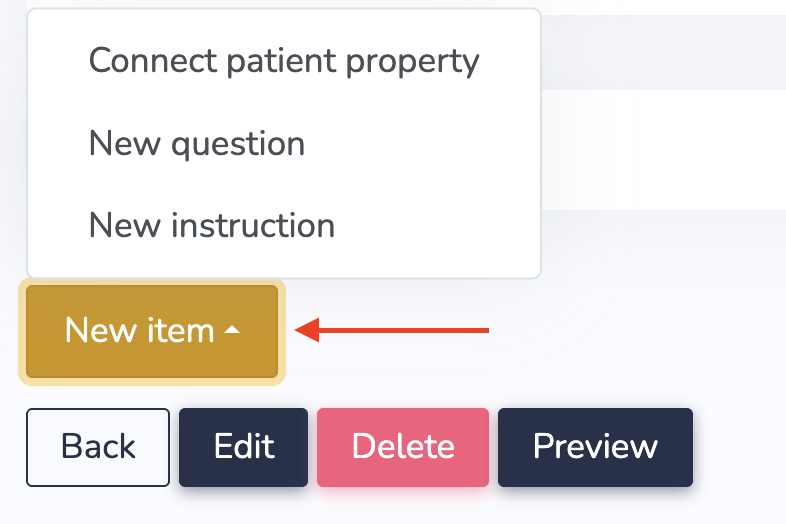
Choose from three item types:
- Instruction: Use it to provide context or instructions that help patients understand how to complete the questionnaire. It is not fillable.
- Question: this is fillable by the patient. See Question types on Embodia for the full range of response formats.
- Connect a patient property: this is fillable by the patient. This links the item to a patient property, so a patient's answer updates their profile automatically. Available on Tier 3 memberships. See Using patient properties for more.
Everything autosaves as you build, so there's nothing extra to save when you're done.
Get more from your questionnaires
Patient property or question?
Use Connect a patient property for information that rarely changes and belongs on the patient's profile. For example: date of birth, address, phone number. Use a New question for anything specific to this consult or case, like "What's the reason for booking this visit?"
Question types
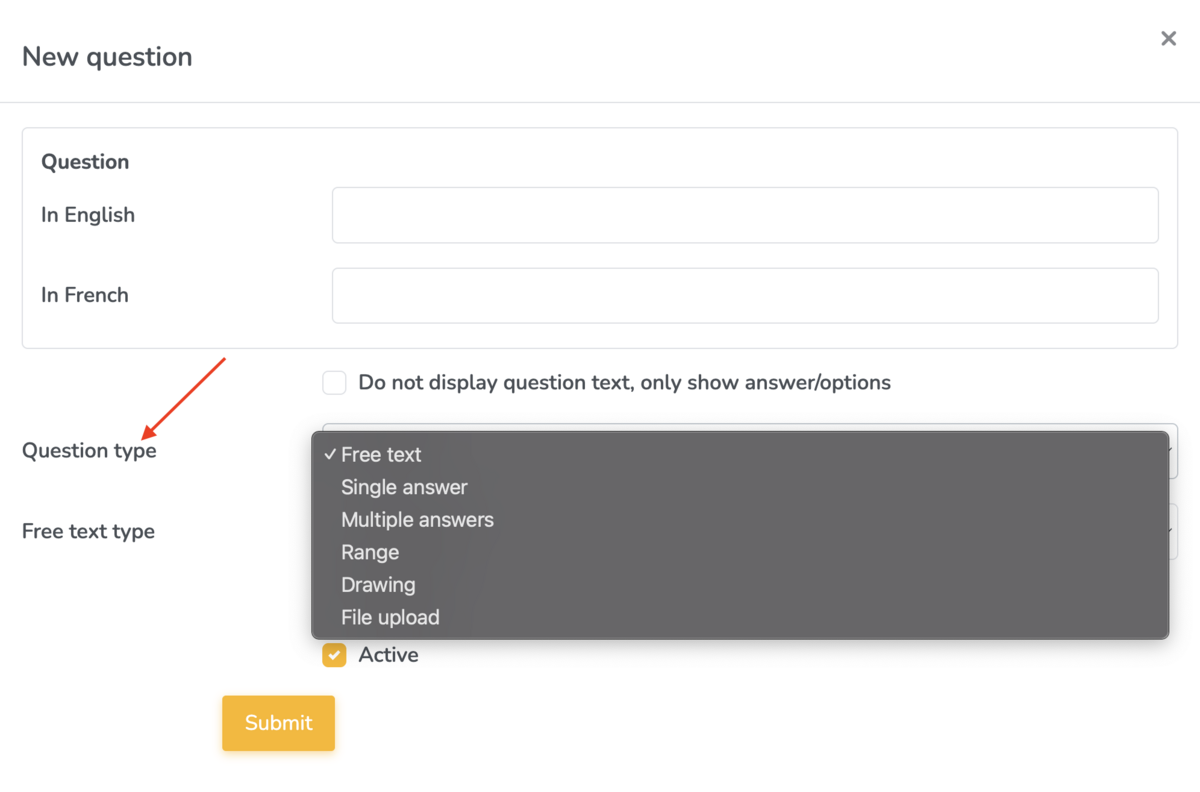
Choose from Free text, Single answer, Multiple answers, Range, Drawing, and File upload. Full detail on each type is in Question types on Embodia.
Duplicate a question
Reuse a question you've already built by selecting Duplicate question, then edit the copy as needed. The question type itself can't be changed after duplicating.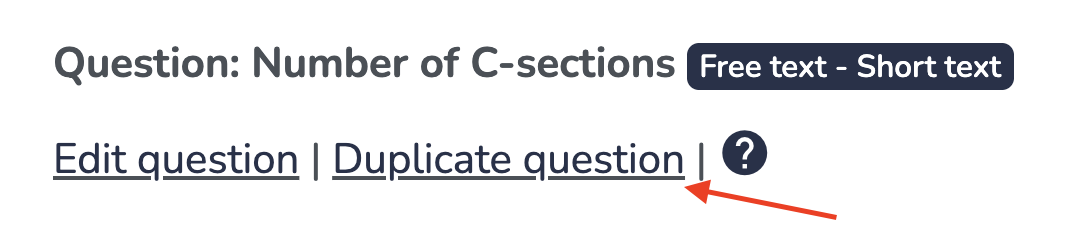
Reorder questions
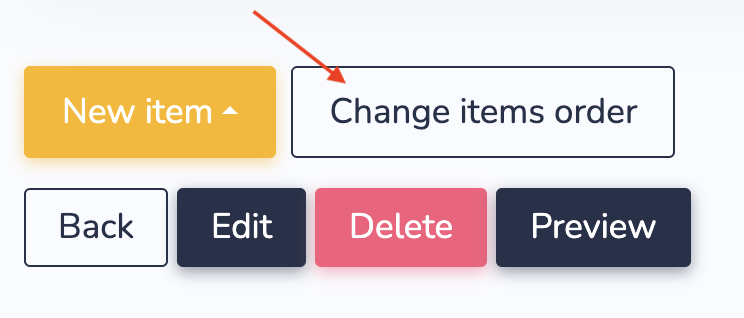
Select Change items order at the bottom of the questionnaire builder page. Then, drag and drop questions into the sequence you want.
Preview the questionnaire
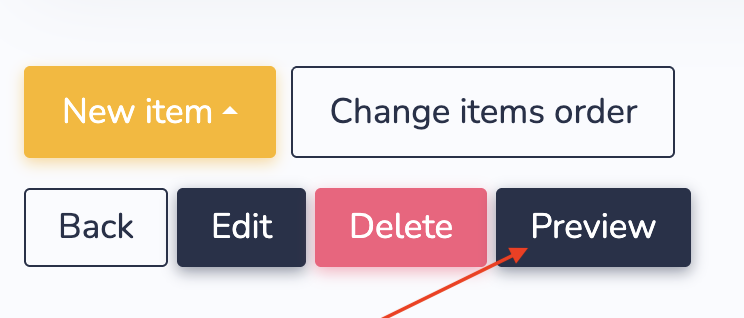
Select Preview to see exactly what your patient will see before the questionnaire goes out.
Manage your questionnaires
Once you’ve created questionnaires, you can
Edit them at any time
Unpublish outdated versions by deselecting the 'Active' checkbox in the edit window
Assign questionnaires to consults or patient profiles.
Send questionnaires to patients
You can send questionnaires by attaching them to a consult:
Before appointments
After appointments
Patients will receive a secure link and can complete the questionnaire on any device by signing into their secure Embodia portal.
You can also manually send a questionnaire to a patient and complete a questionnaire with a patient.
Learn how to manually share questionnaires with your patients or how to automatically send questionnaires before or after a consult.
Related guides
- AI DocBuilder: Building fillable forms from existing PDFs
- What questionnaire and outcome measure templates are available?
- Question types on Embodia
- Using patient properties
- Sharing questionnaires: manually and automatically