
Sharing a chart entry with an external user
What is external sharing on Embodia?
Embodia enables you to securely share your chart entries with external users, such as physicians, instead of relying on antiquated methods such as faxing.
When you share a chart note with an external user:
- They can access it using a unique URL that expires after a certain time (defined by you);
- Their access to it will be recorded and shared with you;
- They will not be able to modify any chart items you completed;
- You have the option to ask the external user to complete additional chart items (examples below).
Enabling external sharing
Note: The actions described in this section require a Manager permission in your clinic.
By default, external sharing of patient charts is disabled for your clinic.
The clinic manager can enable this feature by going to Charting > Charting settings > General settings:

Then, checking the Allow external sharing of patient charts checkbox.
If you would like to receive a notification when an externally shared chart has been completed by the external user, check the corresponding checkbox as well. Then, click Submit.
Before sharing a chart entry with an external user
Two conditions must be met
To be able to share a chart entry with an external user, the following is required:
- External sharing of patient charts must be enabled for your clinic (see above).
- The chart entry must be signed.
Important: Only signed chart entries can be shared. Once shared, you will no longer be able to revert the signing of the entry.
When sharing a chart entry with an external user:
- You define the expiry of their secure access link.
- You can optionally require the external user to enter a password of your choosing, for additional security.
- You can include additional chart items and ask the external user to complete them
External sharing is not recommended for patients
It is not recommended to use this feature to share the chart entry with patients themselves. We have a different feature for that that provides you with more control, and continual patient access.
If you would like to share a chart note with a patient, it's best to change the chart (or specific chart item) visibility to "Visible to patient", so the patient can access their chart from their patient portal. Learn more about how to do this in the Changing the visibility of a finalized chart guide.
Chart items for external sharing
Some example chart item use cases are:
- A drawing chart item to collect a signature
- A free-text chart item to collect notes or information (such as patient vitals)
- A single or multiple-answer chart items to collect specific answer(s) or acknowledgement(s)
- A file upload chart item to collect the patient's prescription/order/referral document
Creating chart items specifically for external sharing
If they differ from your existing chart items, you'll want to create new chart items to use for external sharing, in advance.
The example we're using in this section is a file upload chart item, but you can see an example of a vitals chart item in the last section of this guide.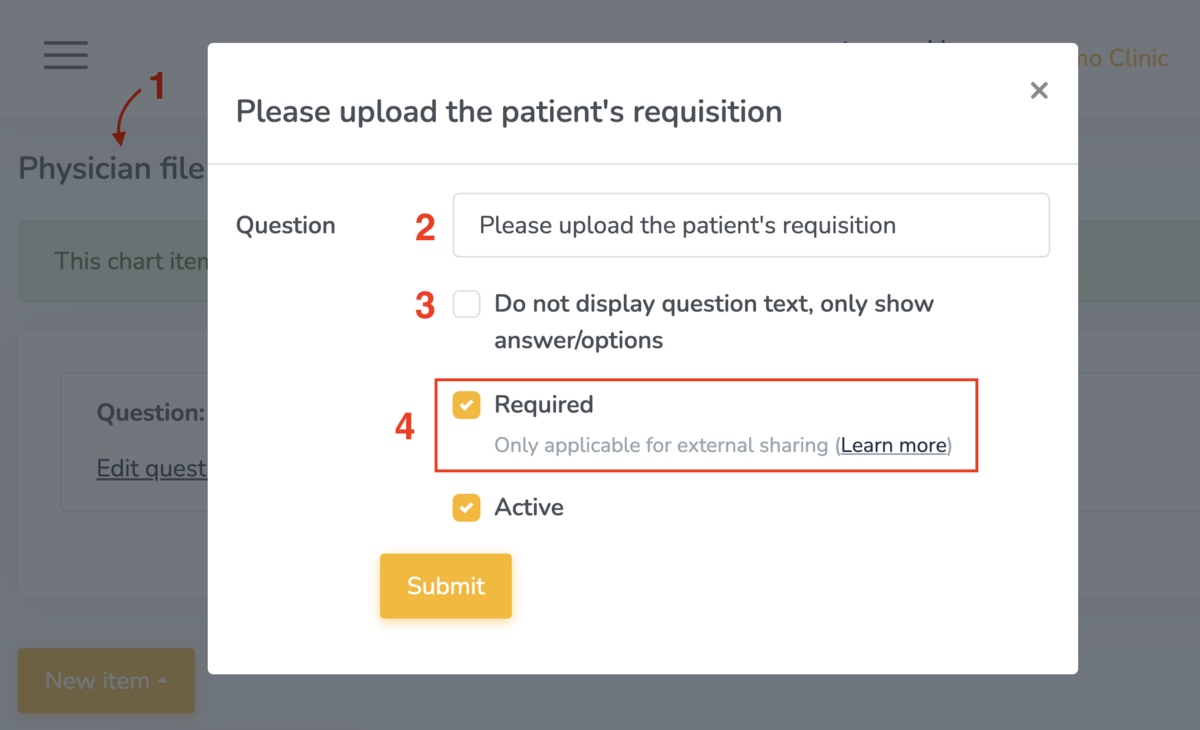
When creating chart items for external sharing, there are a few options:
- Choosing distinct chart item names:
Since you'll select your chart item from a dropdown of all active chart items on your account, if the chart items you are using for external sharing differ, you may wish to name them distinctly (ex. Physician file upload). The chart item name will not be visible to the external user you're sharing it with. - Choosing question text:
Chart items are made up of one or more 'questions' of varying types (learn more in this Creating chart items guide). If you wish for this to be displayed/visible to the external user, an instruction might make sense (see example below). The next option (3) outlines an alternative. - Hiding question text:
If you do not wish for the external user to see the question text, you can select the checkbox for Do not display question text, only show answer/options. - Required and optional chart items:
When editing your chart items, you have the option to mark questions as required (or not) for the external user.
In the next section, we detail how to add a chart item for an external user to complete.
How to share a chart entry with an external user
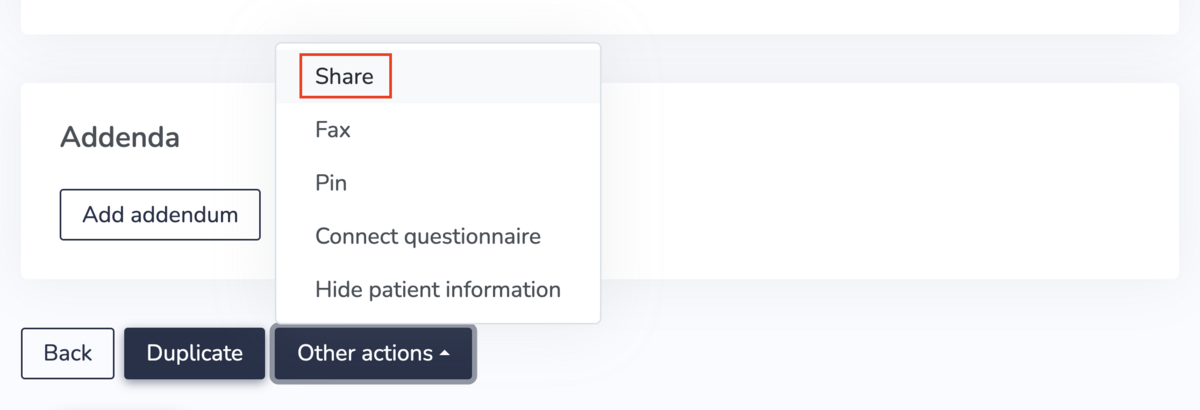
If external sharing of patient charts is enabled for your clinic, and the chart entry is signed, you can share it with an external user by clicking on Other actions at the bottom of the chart note, and selecting Share:
You will be redirected to a page that lists all the previous shares of this chart entry (if any exist).
To proceed with a new share, click on Share chart entry:

Fill in the popup form with:
- The name of the external user
- The expiration date of the secure link
- The chart entry will no longer be accessible to the external user after the expiration date
- We recommend setting a short expiration date of no more than a week or two
- Whether you'd like to hide the patients information from the external user
- This will hide the patient name, and any patient properties included in the chart entry
- An optional password
- If provided, the external user will need to enter it to gain access to the shared chart entry
- If provided, the external user will need to enter it to gain access to the shared chart entry
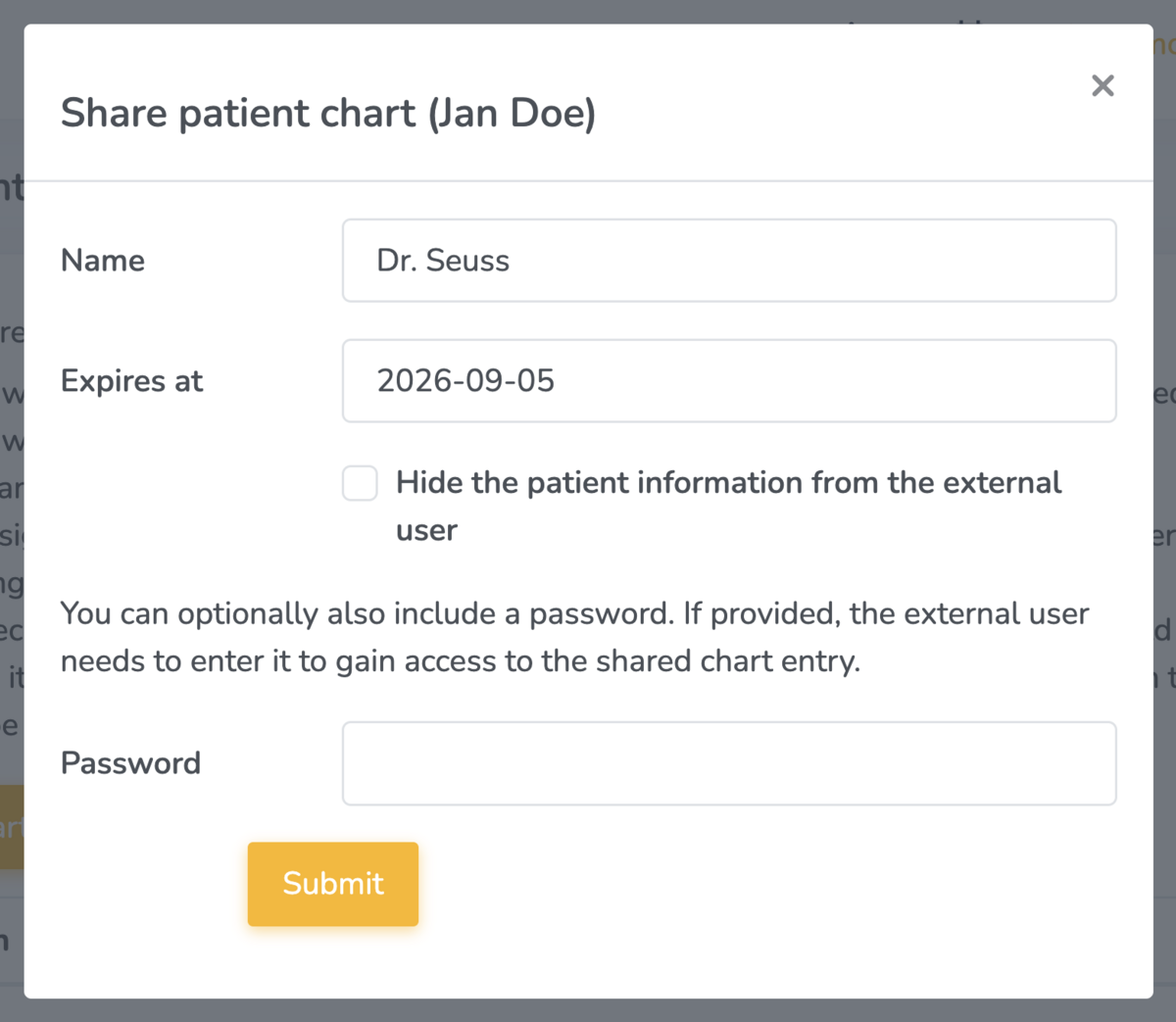
After clicking Submit, you will be redirected to the chart entry share page (below).
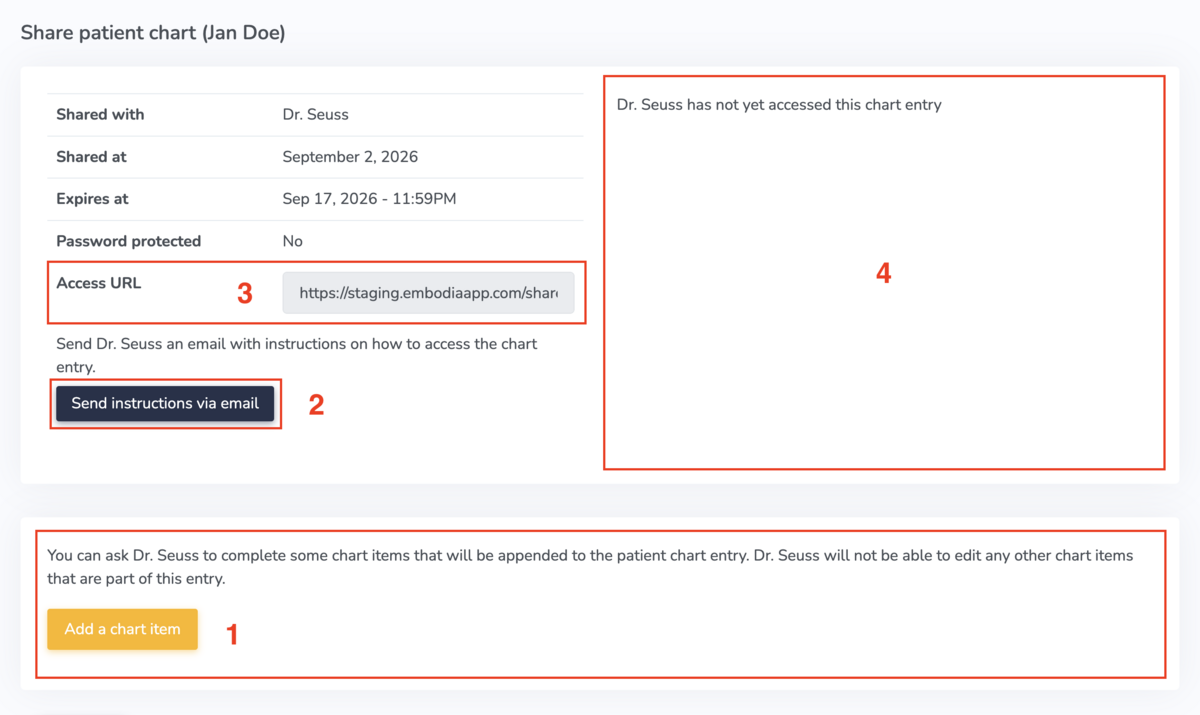
- Adding chart item(s) for the external user to complete:
If you would like to ask the external user to add some information to the chart entry, you can add chart items by clicking on Add a chart item (see above image) and selecting the appropriate chart item from the dropdown menu. We recommend doing this step first.
Whichever chart items you add here will be the only ones the external user will be able to complete; they will be able to view the other chart items in your chart entry, but they won't be able to edit them.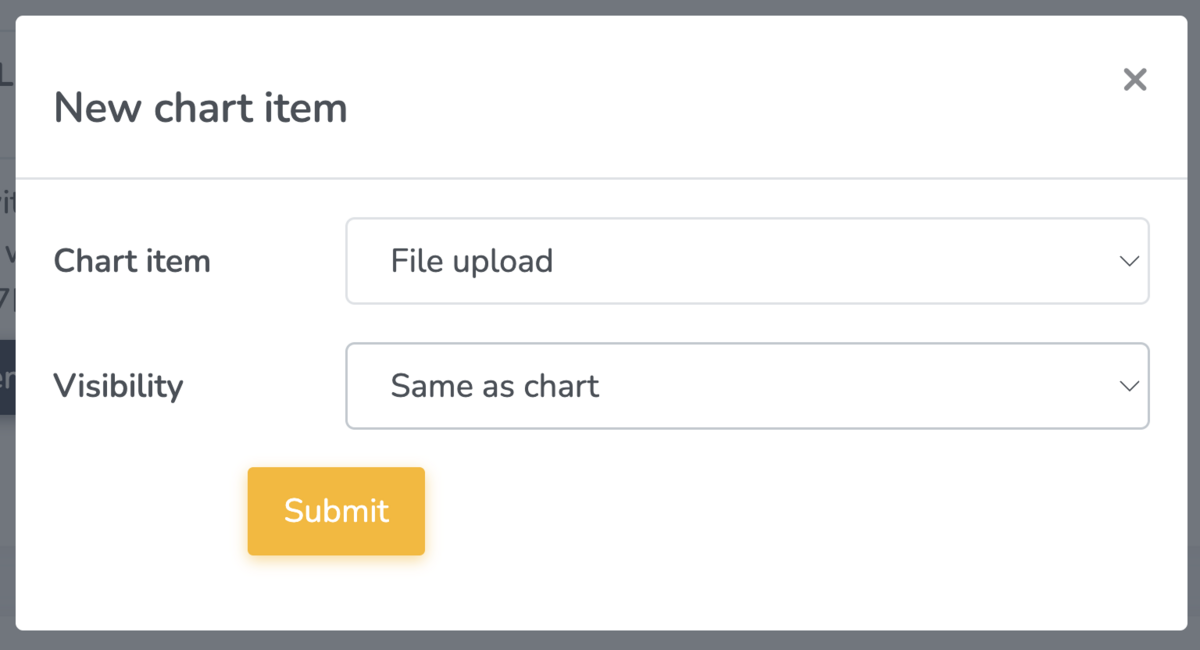
- Where to find the secure Access URL for your chart note:
The external user can access the shared chart entry using a unique Access URL (see above numbered image). - Ways to share the Access URL:
You can either, copy the URL and provide it to the external user, or send the external user an email with instructions on how to access the share chart entry by clicking on Send instructions via email (see above numbered image) and providing their email address. Embodia will send them an email with the instructions needed to access the chart entry.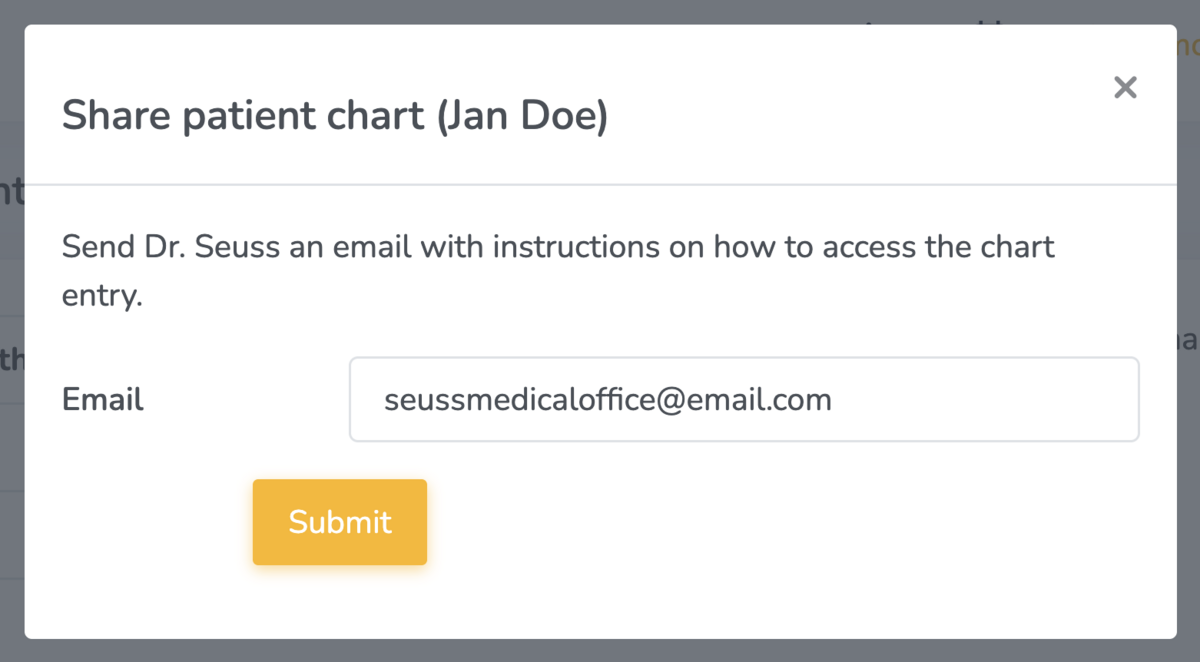
Note: Selecting Submit after inputting the external user's email will send the invitation and instructions to view the link immediately. You can still add chart items after this email is sent, but the external user can access the shared chart as soon as they receive the email. For that reason, we recommend adding the additional chart items first.
- Viewing the recorded access:
The access to the shared chart entry by the external user is recorded and shared with you (see above numbered image). In the example above, the external user has not accessed the shared chart entry yet. Once they do, the date and time will recorded and listed:

The external user experience
The external user can access the shared charted entry using their unique Access URL. Embodia can also send an email to the external user with instructions on how to access the shared chart entry (see above).
When the external user visits the unique access URL, they will be asked to consent to their access being recorded:

If the user consents to their access being recorded, they click Access chart entry and are then redirected to the chart entry page.

If the external user needs to complete some chart items, they will see a notice and the chart items that need to be completed will be highlighted in yellow.
When the external user completes the requested chart items, they can sign their input by clicking on the link in the notice. This is similar to the way you 'sign' your own chart notes, by clicking a button. This does not prompt them to provide a signature, it simply 'completes' their contribution to the chart.
Once the external user 'signs' their input, no further modification can be made.
Note: If you require an actual signature from the external user, you will need to add a chart item to collect this. Please refer to the Before sharing a chart entry with an external user section in this guide, above.